
Start here
Logging in and resetting your password
- You can do this
- Login screen
Your website’s editor is at your web address followed by /wp-admin, for example yourbusiness.co.uk/wp-admin.
Steps
How to log in
-
1
Go to the login screen
Go to your web address followed by /wp-admin.
-
2
Type your details
Type your username or email address and your password.
-
3
Press Log In
Press Log In. You land on your dashboard.
What you'll see
The login screen
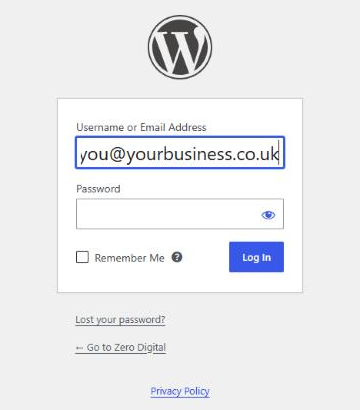
Your username is in the email I sent when your site went live.
Steps
How to reset a forgotten password
-
1
Press Lost your password?
You'll find it on the login screen.
-
2
Ask for a new password
Type your username or email address and press Get New Password.
-
3
Open the email
Open the email that arrives and follow its link. If it doesn't arrive within a few minutes, check your spam or junk folder.
-
4
Choose a new password
Choose a new password and save it.
Managed by Zero Digital
When to ask me
- Someone else on your team needs their own login.
- Someone who had a login has left and shouldn’t have access any more.
- The reset email never arrives, or you still can’t get in.
Ask through the support page and I’ll let you know what’s involved.