
Photos and files
Upload photos and documents
- You can do this
- Media
Every photo, logo and document lives in Media. Upload it once and use it on any page.
Steps
How to upload a file
-
1
Open Media
In the left-hand menu, click Media, then Add Media File.
-
2
Add your files
Drag your files onto the page, or press Select Files.
-
3
Describe your photo
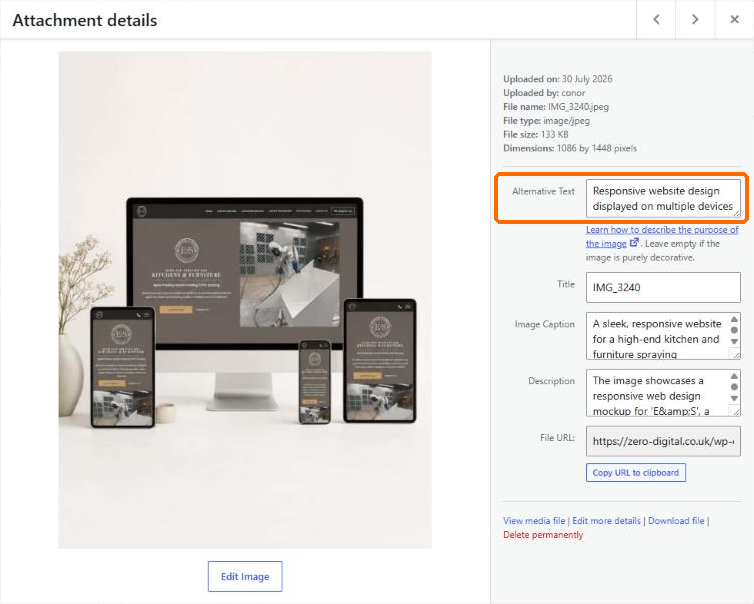
Once uploaded, click a photo to open its details and fill in Alternative Text (see below).
What you'll see
Describe each photo
Alternative Text describes what’s in the photo, for people who can’t see it and for search engines. Write it once here and it goes with the photo onto every page that uses it. “Fitted oak kitchen with a white island” says far more than “kitchen1”.
You can also upload straight from a section while you’re editing a page. See Change a photo.
Documents
How to link to a PDF, such as a price list
-
1
Upload it
Upload it the same way.
-
2
Copy its address
Click it, then press Copy URL to clipboard.
-
3
Paste the address
Paste that address into a button's link, or into a link in your text.
Take care
Before you delete anything
Deleting a file from Media is permanent. There’s no Bin for photos, and any page still using it shows a gap where it was. Only delete a file you’re sure isn’t used anywhere, or simply leave it; unused files do no harm.
To swap a photo on a page, upload the new one and choose it in the section. The old one can stay.
Managed by Zero Digital
When to ask me
- A file won’t upload, or says its type isn’t allowed.
- You deleted a photo that’s still needed.
Ask through the support page and I’ll let you know what’s involved.