
Editing pages
Write a blog post
- You can do this
- Posts
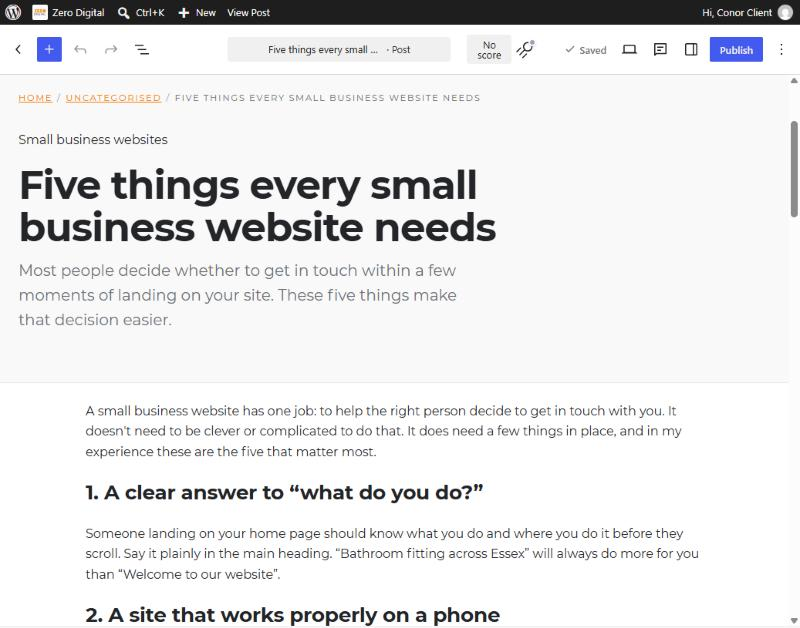
If your plan includes the blog, you write a post straight onto the page, much like a document. You don’t need a section for the text.
Steps
How to write a post
-
1
Add a new post
In the left-hand menu, click Posts, then the button to add a new post.
-
2
Fill in the heading
Fill in the heading at the top. Your post's main heading and intro go in this first section, using the panel on the right.
-
3
Start writing
Click the line underneath that says Start writing your post and type. Press Enter for a new paragraph.
-
4
Add subheadings, lists, photos and quotes
Click a new line and type /, then start typing what you want, such as /heading. You can also use the blue + at the top left.
-
5
Preview, then save
Preview your post, then save it.
Headings
Break a long post up
Subheadings break a long post up and help people, and search engines, follow it.
Click a heading, then choose its size from the H2 button in the small toolbar above it:
- H2 for a main part of the post.
- H3 for a part that belongs to the H2 above it.
- H4 for a smaller part of that.
There’s no H1 here because your post’s main heading is the one at the top.
Already written it?
Pasting a post you've already written
Copy your text from Word, Google Docs or an email, click a new line in the post, and paste. Your paragraphs, and usually your headings and lists, become separate blocks you can edit.
Check the formatting afterwards, as some can come across with it.
Steps
How to copy a post
-
1
Open Posts
Useful when a new post will follow the same layout as an old one. In the left-hand menu, click Posts.
-
2
Click Duplicate
Hover over the post you want to copy and click Duplicate.
-
3
Open the new draft
The copy opens as a new draft, with "(copy)" after its title. It isn't on your website until you publish it.
-
4
Change the headings
Change the heading in the opening section, and the title at the top of the editor.
-
5
Add a new SEO title and description
Add a new title and description under the SEO button. These aren't copied, so that two posts don't compete with the same ones in Google.
What comes across
What a copy brings with it
The text, photos, excerpt, categories, tags and featured image all come across.
Only blog posts can be copied. If a post has an Embed Code section you’ll see a message instead, and I can copy it for you through the support page.
Managed by Zero Digital
When to ask me
- You want a new category or tag for your posts.
- You want the blog added to your plan.
Ask through the support page and I’ll let you know what’s involved.