Skip to content

Start here

A tour of your dashboard

  • Dashboard

It’s the first screen you see after logging in. Everything you need day to day is in the menu on the left.

What you'll see

The Your website box

The dashboard is the first screen you see after logging in. Everything you need day to day is in the menu on the left, and the Your website box gives you a shortcut to each part.
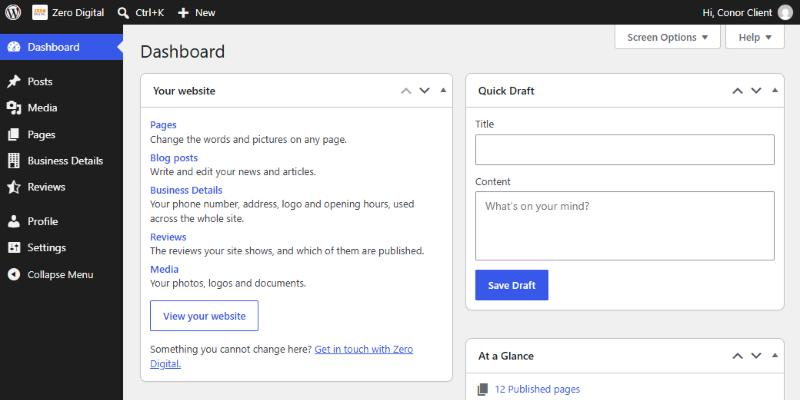
The dashboard as a Client sees it. The left-hand menu lists Dashboard, Posts, Media, Pages, Business Details, Reviews, Profile and Settings, and the Your website box links to Pages, Blog posts, Business Details, Reviews and Media, with a View your website button.

It lists each part of your site you can change, with a line on what it’s for, and a View your website button to see the live site.

The menu on the left

What each menu item is for

  • Dashboard

    This screen.

  • Posts

    Your blog posts. Only shown if your plan includes the blog.

  • Media

    Your photos, logos and documents.

    Learn more
  • Pages

    The words, photos and sections on every page of your site.

    Learn more
  • Business Details

    Your phone number, email, address, opening hours, logo and social links, used across the whole site.

    Learn more
  • Reviews

    The reviews your site shows.

    Learn more
  • Profile

    Your own name, email address and password.

  • Settings

    Only Google Reviews, and only if I've switched it on for your site: connect or disconnect the Google account your reviews come from.

    Learn more

Along the top

Your site name and your name

  • Your site name, top left, opens your live website.
  • Your name, top right, opens your profile and has Log Out.

Managed by Zero Digital

Why the menu is short

You’ll see fewer menu items than a general WordPress guide describes. That’s on purpose: the design, structure and technical side of your site are managed by me, so there’s nothing in your menu that can break it.

If a guide or an AI assistant mentions a menu you can’t find, such as Appearance, Plugins or Tools, see The things I look after for you.

Related guides

You might want to

  • How your website is put together

    The four parts of your site, and how they fit.

    Learn more
  • What you can change

    Everything that's yours to edit, with a guide for each.

    Learn more

Still stuck?

Tell me what you're trying to do through the support page, and I'll let you know what's involved.

Go to the support page